
Publish and customize the booking form
Publish the five-step booking experience and tailor its content, fields, branding, and layout.
The public booking form is a five-step customer experience: package, schedule, event details, extras and payment, then final review.
- Create at least one active package.
- Finish Square sandbox setup if you plan to show payment fields.
- Decide which customer and event fields should be visible and required.
Publish the form
- Create the page. In WordPress, go to Pages → Add New and name the page Book.
- Add the booking experience. Insert a Shortcode block and paste
[foam_party_booking_form]exactly. - Choose a clean page template. Use a full-width or no-sidebar page template when your theme offers one so the five-step form has enough room.
- Publish and link it. Publish the page, copy its URL, and add it to the website navigation or your primary Book Now button.
- Test signed out. Open the page in a private browser window and confirm the form loads without WordPress administration.
Customize the experience
- Open Booking Form.
- Set the kicker, heading, and supporting sentence so the customer knows what they are booking.
- Choose colors, typography, radius, frame, width, and package layout that match the website.
- Review every optional field. Hide information you do not need and mark only genuinely required information as required.
- Customize field labels in customer-friendly language.
- Save, then reload the public Book page in a private window to verify the real result rather than relying only on the preview.
What customers see at each step
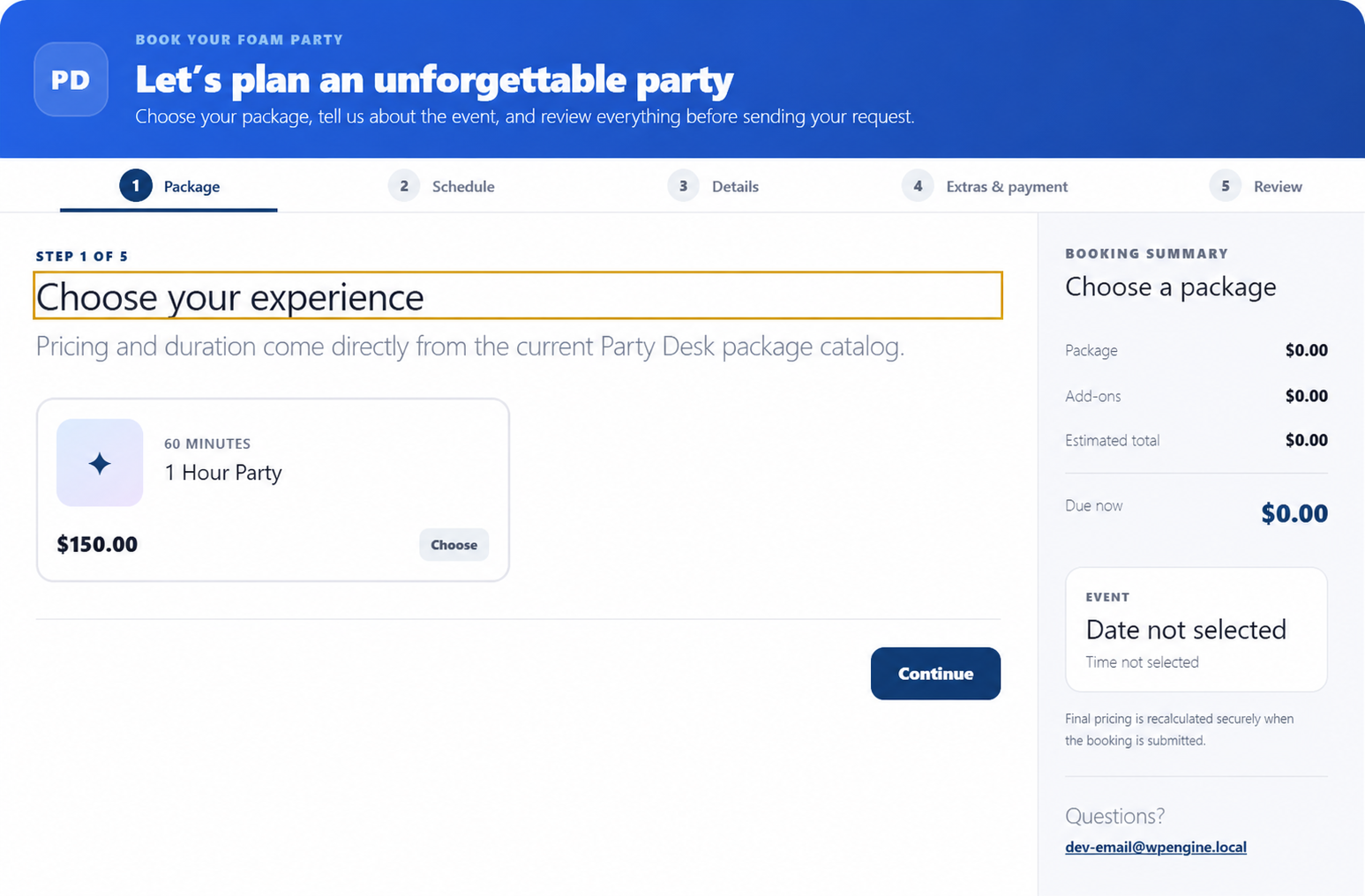
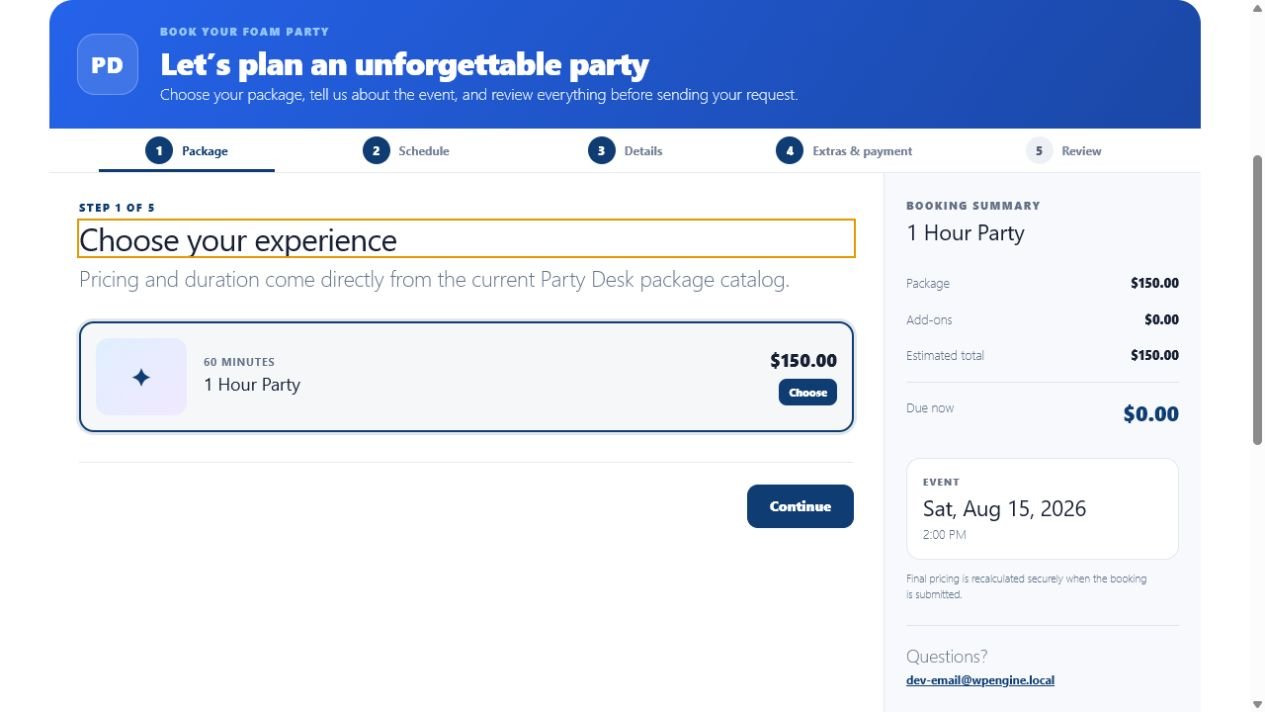
1. Package selection
The customer chooses from active packages. Price and duration come from the package catalog, so confirm those values before publishing.
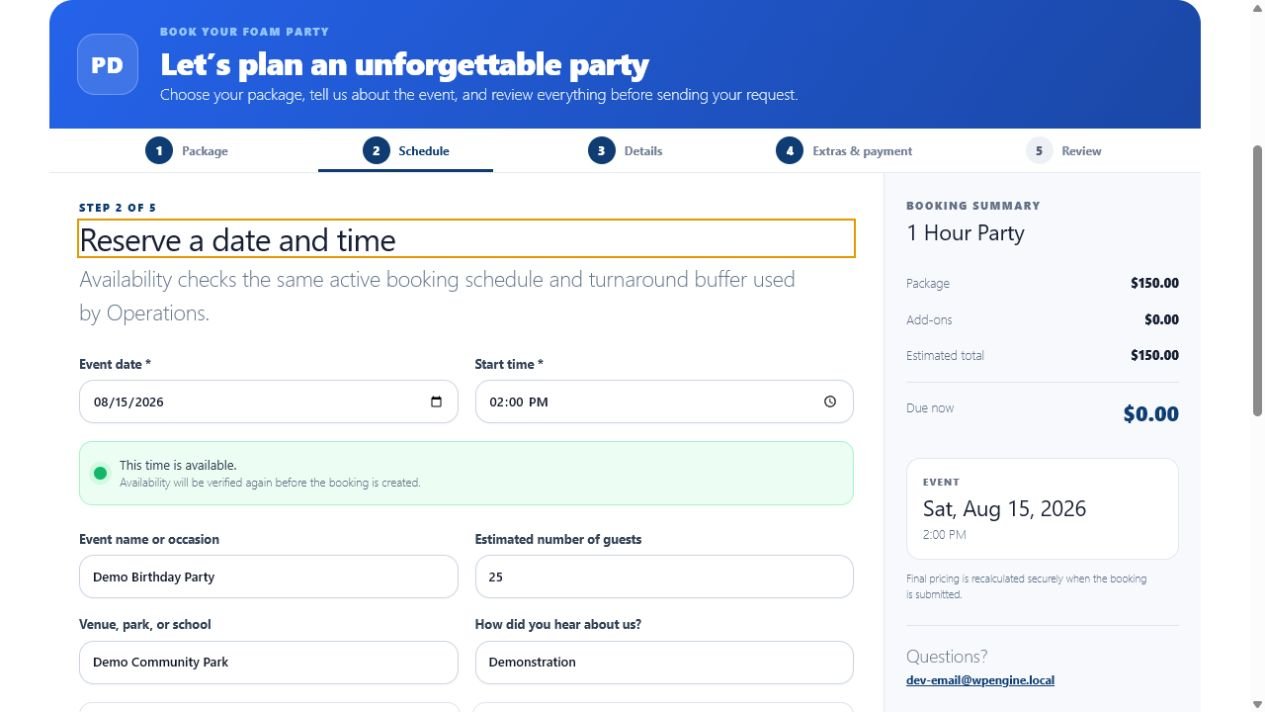
2. Schedule and availability
The form checks the requested date and time against the live booking schedule and configured turnaround rules.
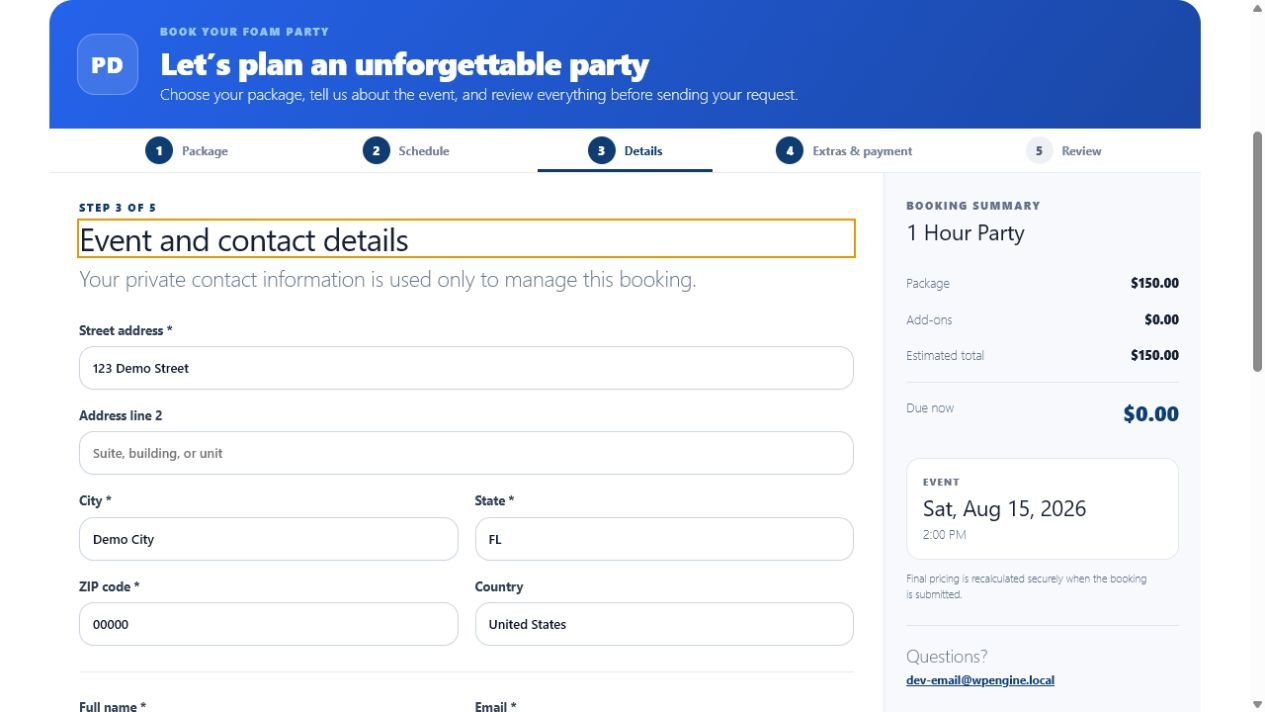
3. Event and contact details
Required address, contact, and event fields are collected before payment options are displayed.
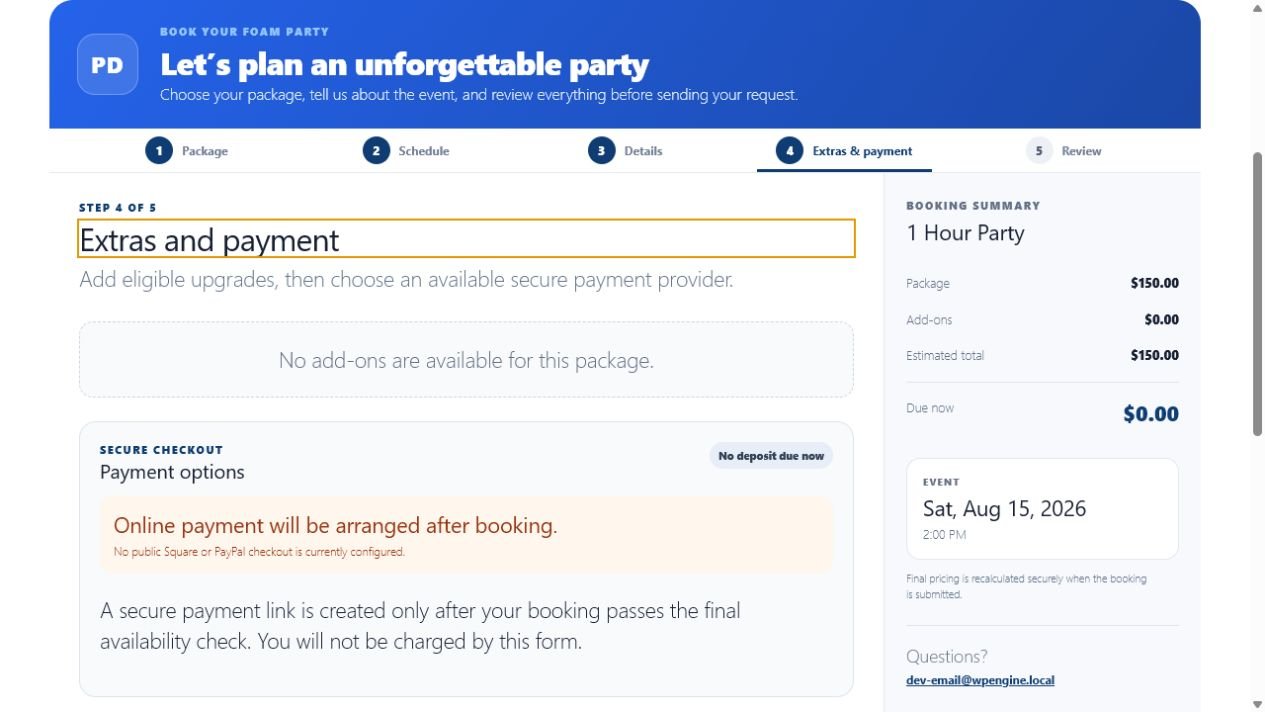
4. Extras and payment
Eligible add-ons and configured secure checkout choices appear here. If no online provider is active, the form explains that payment will be arranged later.
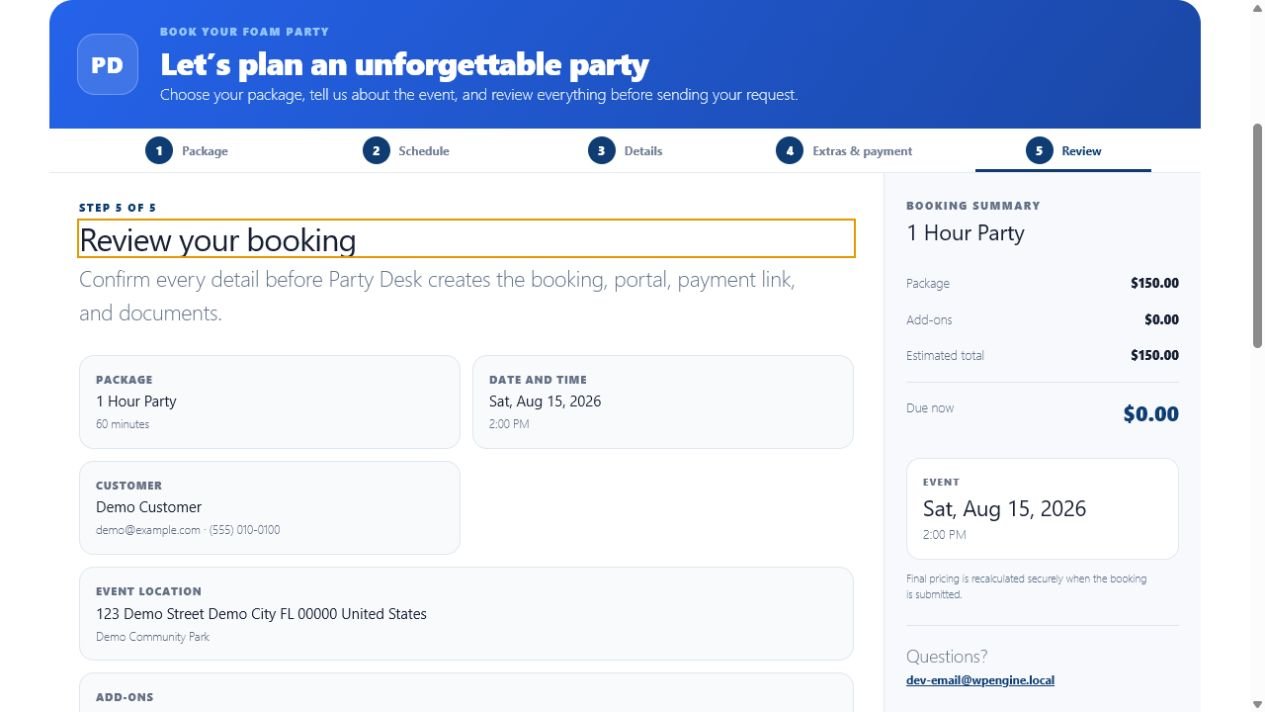
5. Final review
The customer reviews the package, date, contact, location, payment arrangement, and total before authorizing creation of the booking.
Test all five steps
- Select an active package and confirm its price and duration.
- Choose a date and time and verify an unavailable slot cannot be selected.
- Enter fictional customer, event, and address details.
- Select add-ons and a sandbox payment option.
- Review every value before submitting.
- Open Bookings and confirm the saved record matches the form.